 MDML
MDMLRoleCall · Inventory
Inventory that builds the order. From what you really use.
It learns how fast each item really goes, tells your team what to count and when, and builds the order list. An agent can fill the carts at the cheapest stores for you to check out.
Built inside a working café, on its own counts, sales and receipts. The items and people shown are a sample.
Watch it work
Watch it work. A few seconds each.
1.0 How it learns
Three signals. Checked against each other.
No single number is trusted on its own. Sales, buying and counts check each other, so one bad count can't throw off the order.
- Recipes × salesWhat you sold on Square over the last four weeks, times what goes into each item.
- Buying paceHow fast you've actually bought it, from eight weeks of receipts. It also sets the range a count has to fall in.
- Shelf countsCounts teach it a correction for each item, but only when they fall inside that range. A count that looks wrong gets a question, not trust.
You set each item's par level. It works out the usage, what's on hand and when to count.
2.0 Counting
What to count, and when.
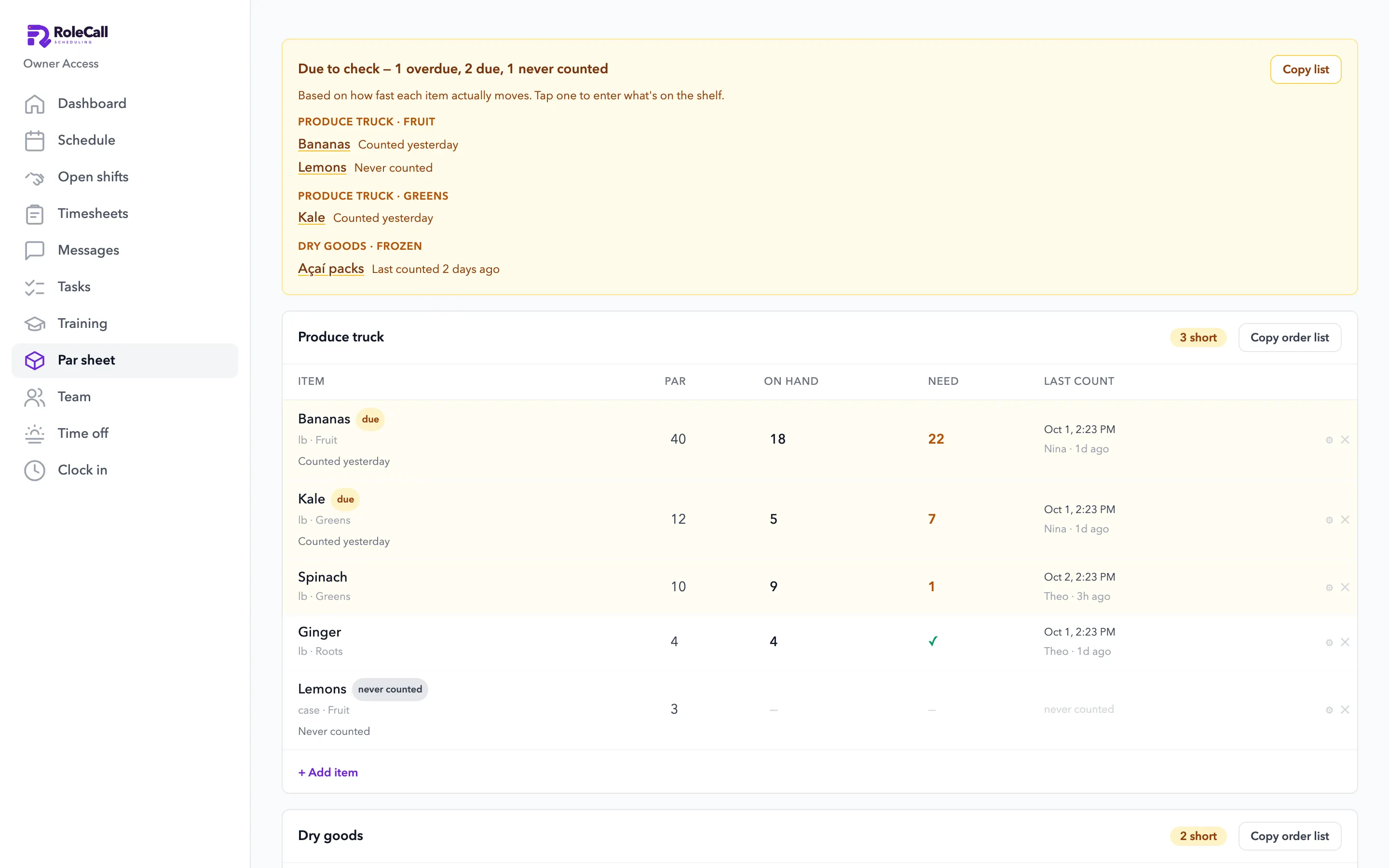
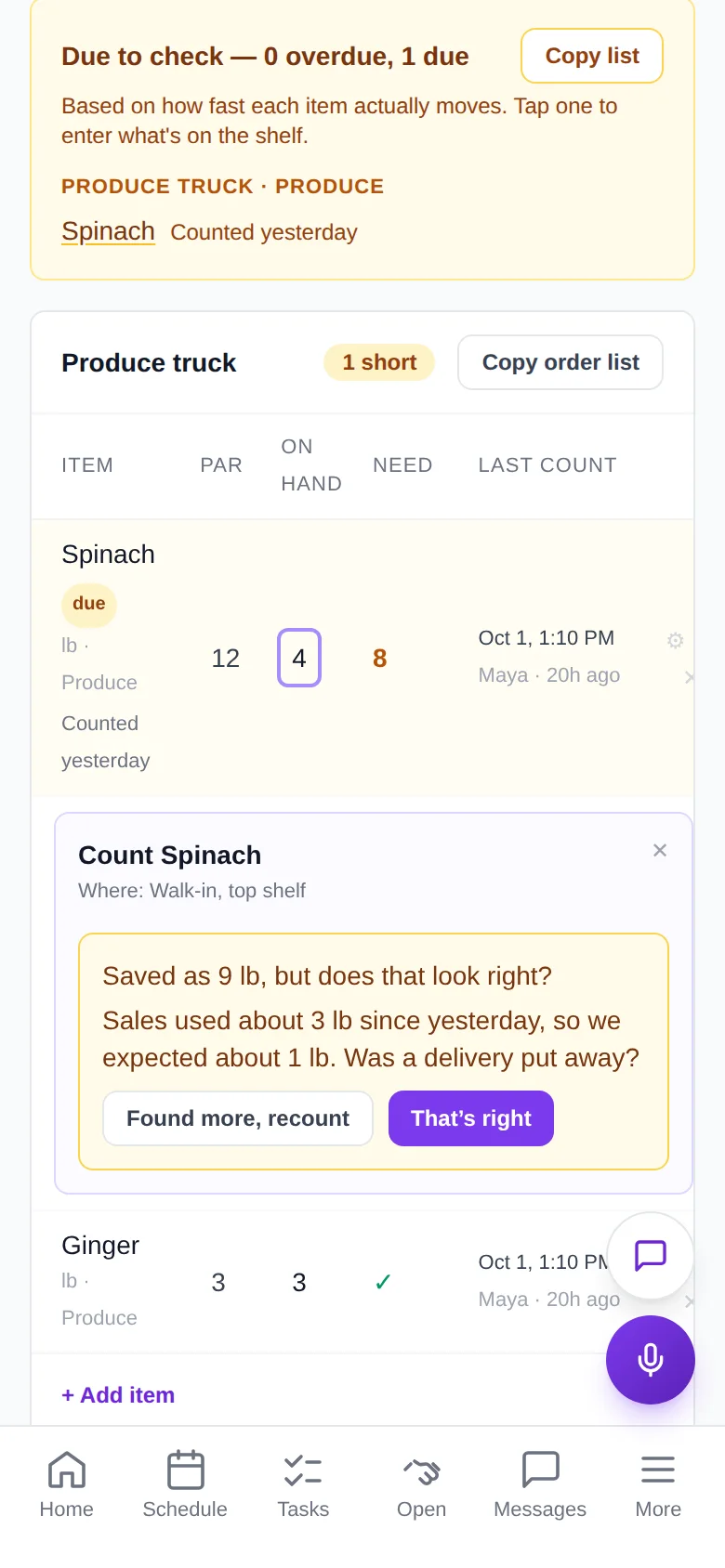
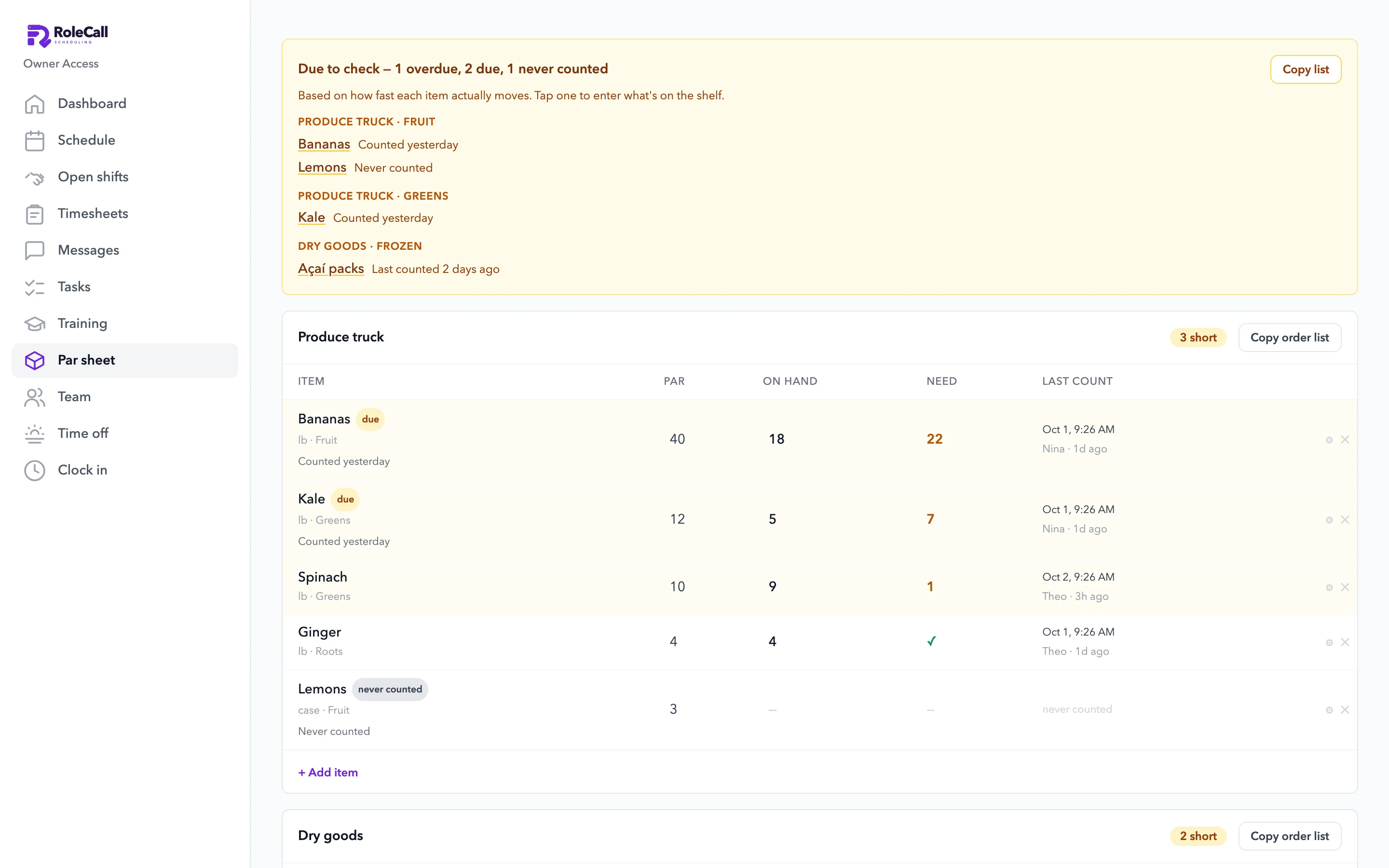
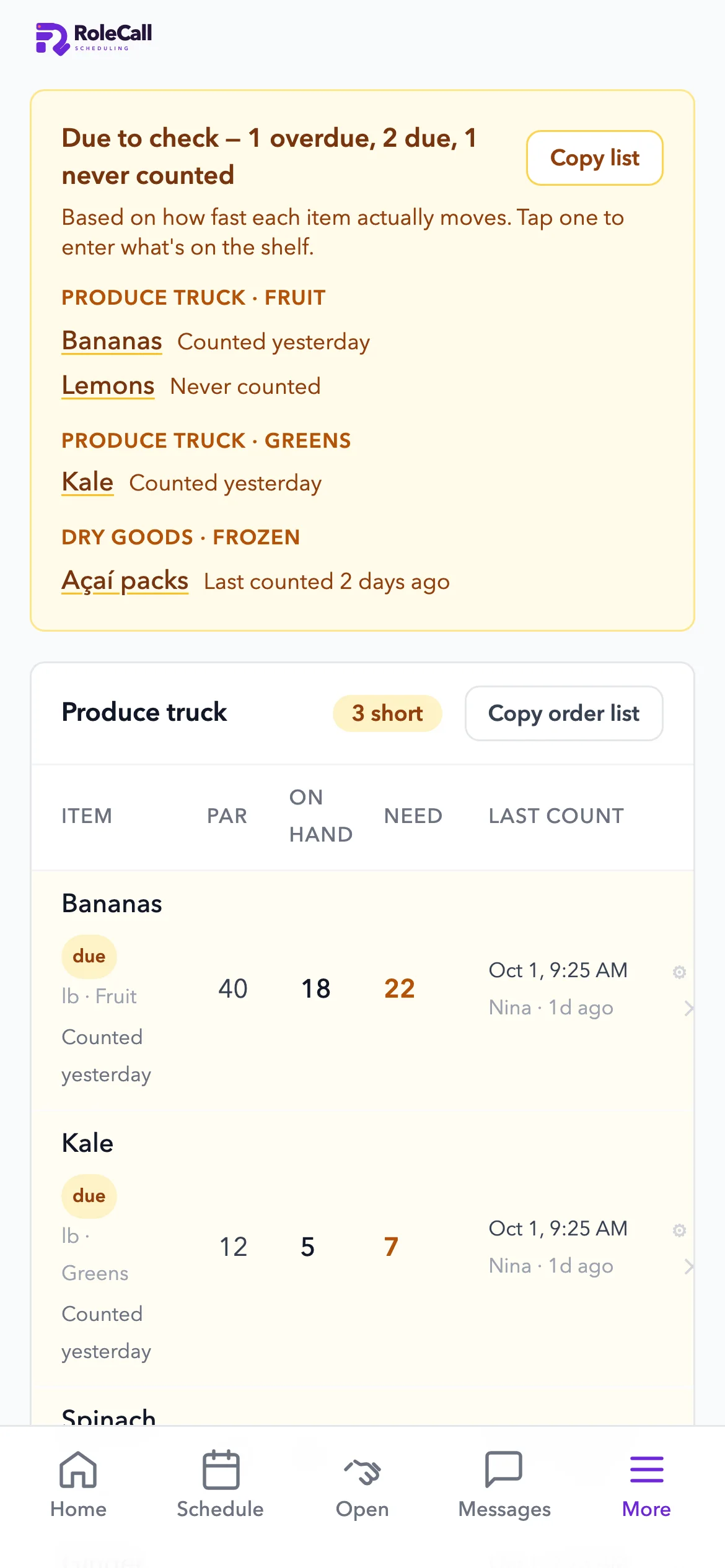
Staff don't count everything every day. They count what's due, by the package, and the app asks when a number looks off.
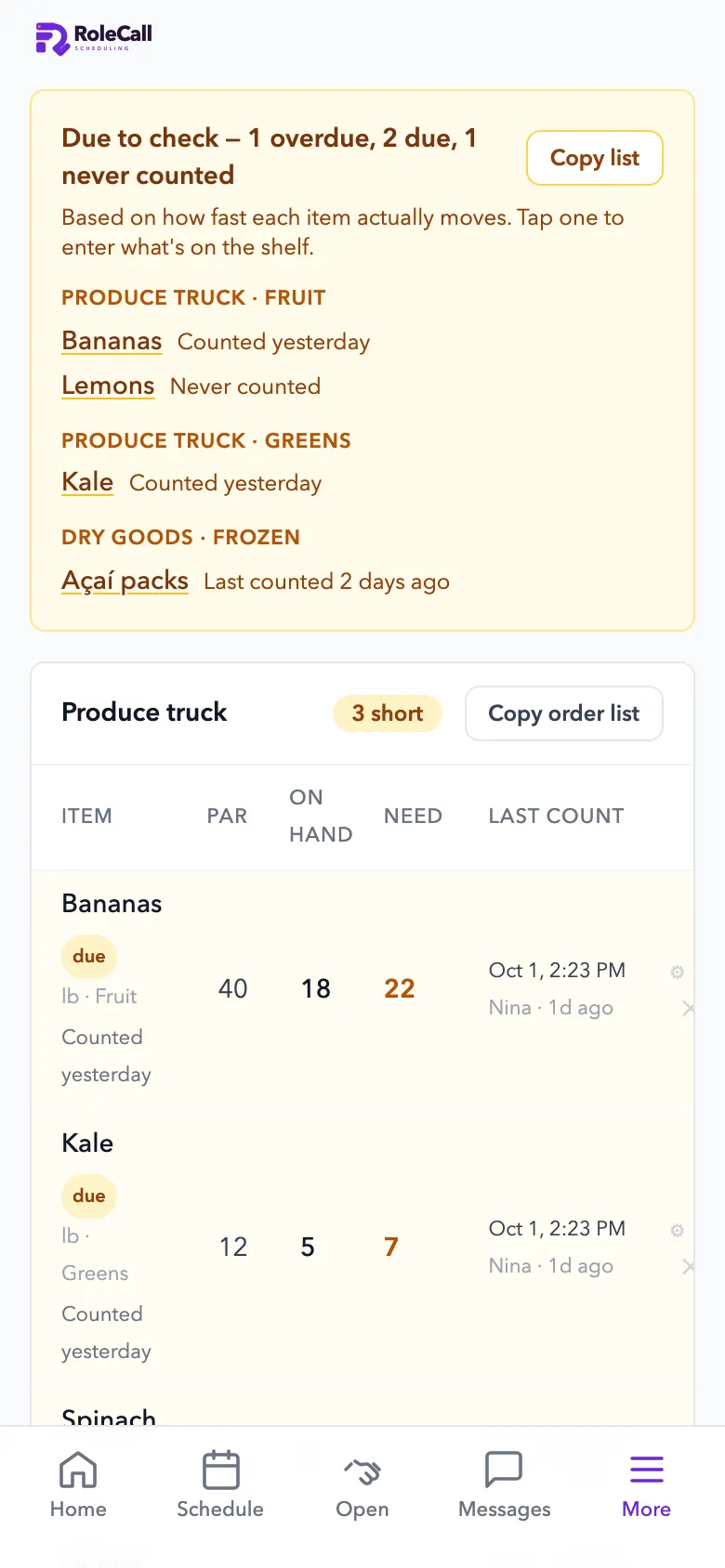
- A due listItems due or overdue to count, based on how fast each one moves.
- Pushes when it matters“Running low” to the people on shift, a nudge to count, and an alert to managers if a count is missed.
- Count by the case, bag or tubWith a photo of each package, so a new hire counts it the same way.
- A question, not a guess“Saved as 9 lb, but sales used about 3 lb since yesterday. Was a delivery put away?”
- Prep counted separatelyPrepped backups have their own counts, and each item can have a storage max.
3.0 The order list
The order, already written.
Par, on hand and what to order, by supplier, ready to copy and send. Log the order, then mark it received.
- By supplierEach supplier's list with what's short.
- Copy and sendOne tap copies the order list.
- Ordered and receivedLog orders and mark them received, so on hand stays right.
4.0 Recipes and food cost
Food cost, next to labor cost.
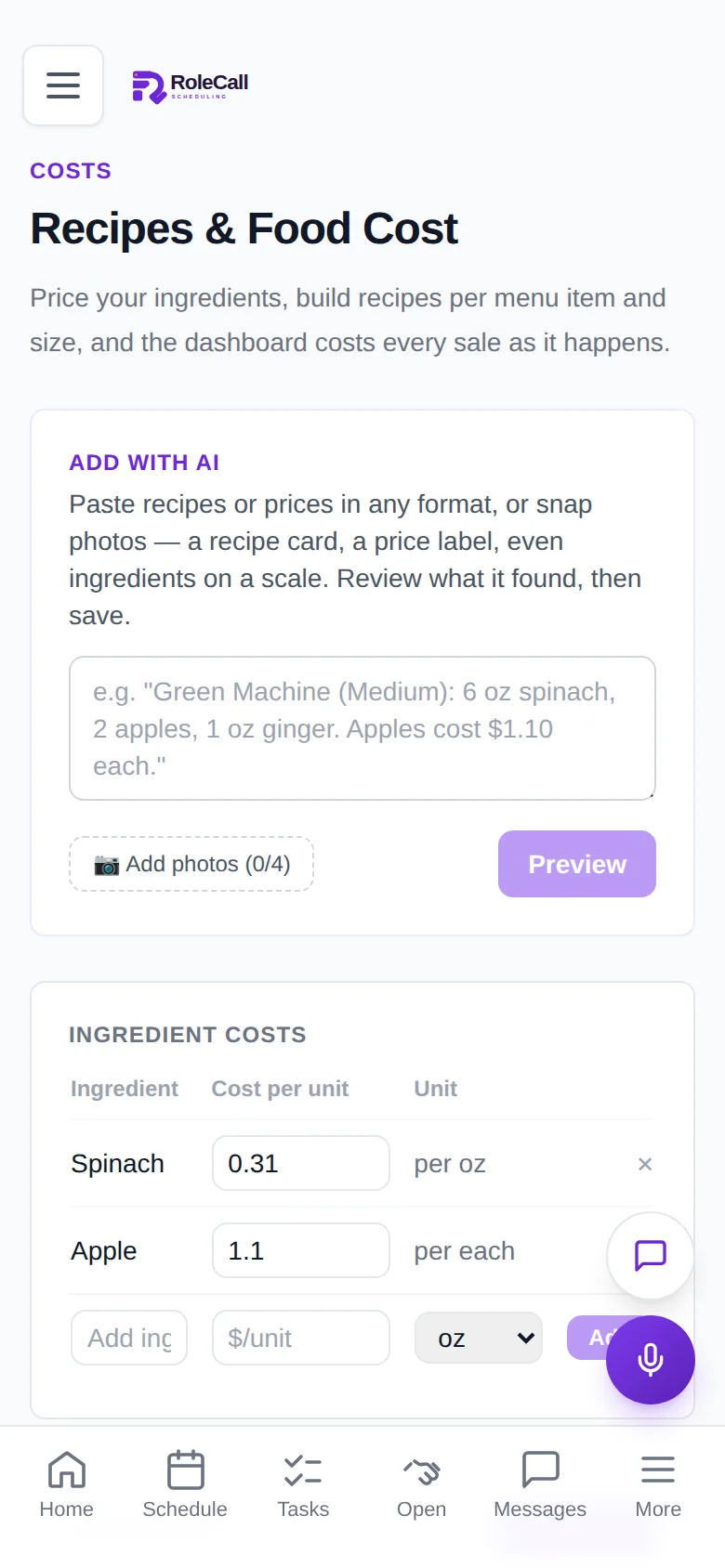
Paste a recipe or snap a photo of a recipe card or a price label. Costs come from your ingredients, and food cost from your Square sales sits next to labor on the home screen.
- Recipes from a photo or textThe AI reads it; you check it before it's saved.
- Ingredient costsPer ounce, per each or per pound.
- Food cost % from your salesNext to labor % on the home screen.
5.0 Ordering agent Early access
Carts at the cheapest stores. You check out.
An AI agent turns what's due into store carts, picks the cheapest stores using the fees on your own receipts, and fills the carts. It never pays.
- The cheapest store for each itemUsing the median of your last three prices at each store.
- Real fees, from real receiptsDelivery, service and tip fees from the last 120 days of your receipts. A second store is only added when the savings beat its fees.
- What's already comingIt respects storage space, orders already on the way, lead times and minimums.
- Carts filled, never checked outThe agent stages the carts and reports them. Checking out is always yours.
- Every receipt keptEach line with its fees, tip and tax. Shop items update deliveries and prices.
- Your own AI agents, on a leashA key with only the permissions you pick: read what's due, record counts or receipts, stage carts.
- A cart marked as placed is refused. You review and check out every cart yourself.
- Ordering agent: $15 a location a month on Growth and Ops, opening to a few businesses at a time.
The real app
The par sheet and the count, as the app shows them, with sample items.
Count less. Order right.
Open RoleCall, add your items and pars, and let it tell you what's due.